
The appearance of the text with icons

Layout settings
| Settings | Description |
| Number of columns on desktop | You can select a “text with icons” column per row following the options (3, 4) for the desktop device. |
| Content position | Horizontal (Default): You can display icons/images and content horizontally by selecting the option Vertical: You can display icons/images and content Vertically by selecting the option |
| Content Alignment | Left: Aligns the content to the left. Right: Aligns the content to the right. Center: Aligns the content to the center. |
Colors
| Settings | Description |
| Color scheme | You can change the color of the section. |
Border
| Settings | Description |
| Show | You can show a border between the columns |
| Color | You can change the color of the borderline. |
Text with icons block settings
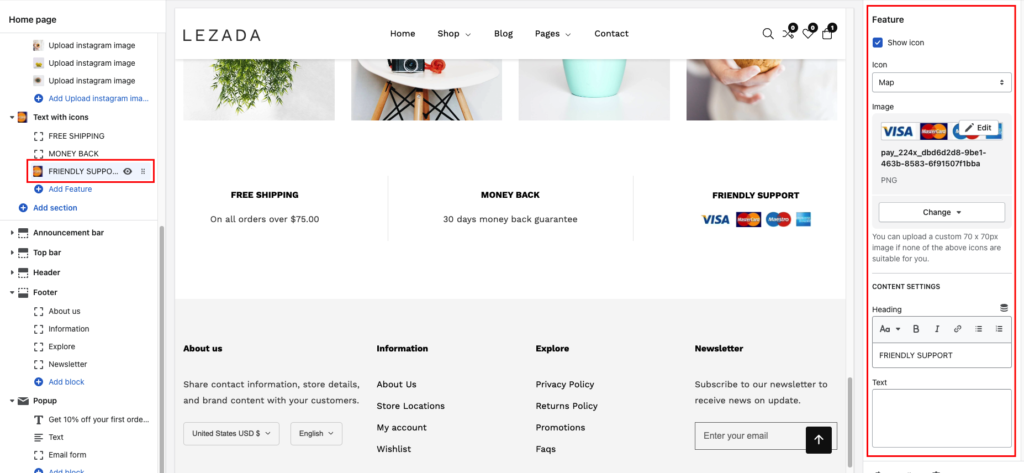
| Settings | Description |
| Icon | By default, the icon is displayed. You can change icons from selection icons. |
| Image | You can upload a custom 70 x 70px image if none of the above icons are suitable for you. If uploading an image, the Image will be displayed instead of icons. |
| Heading | RichText: You can add a title using the RichText editor. Learn more about this |
| Text | You can add text. |


